|
1
|
- What is geometric graphics?
- Seeing geometry (rendering)
- Transformations
- Working with paint and draw programs: pros, cons, and combinations
|
|
2
|
- Geometry-based graphics applications store mathematical descriptions, or
“models,” of geometric elements (lines, polygons, polyhedrons…) and
their associated attributes (e.g., color, material properties).
- Example 2D geometric programs: Adobe Illustrator, Macromedia Freehand,
AutoCAD and other CAD software.
|
|
3
|
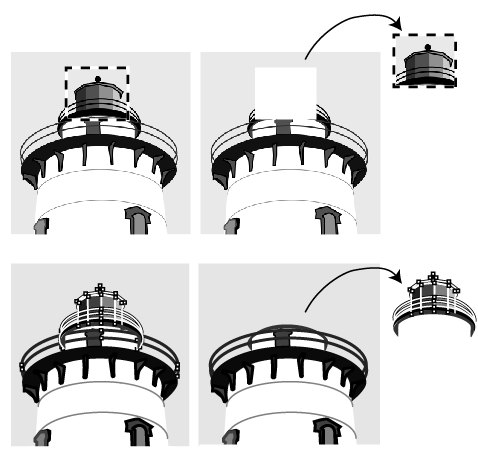
- In paint (raster) programs (top), one can modify selected areas to
change pixel values. The area shapes depend on selection tools used
- In draw programs, one can select the objects (lines, curves, etc) but
not randomly designated areas
|
|
4
|
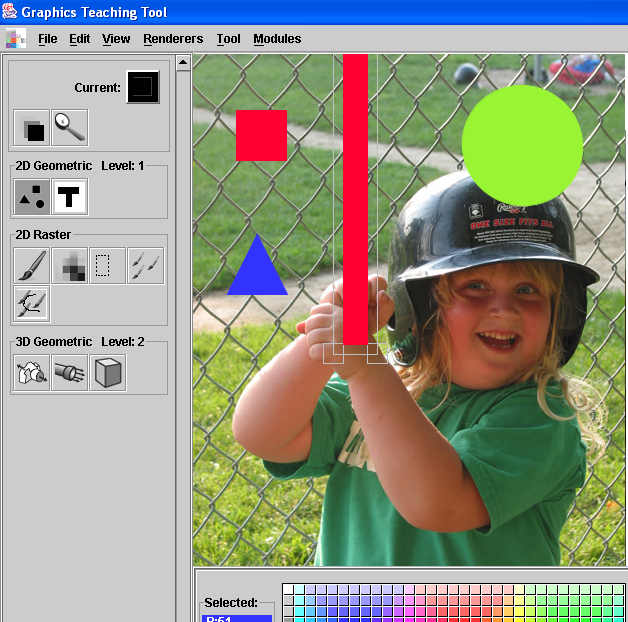
- Demo shapes and inspection tool
|
|
5
|
- %! %% Draws a one square inch
box and inch in from the bottom left
/inch {72 mul} def % Convert
inches->points (1/72inch)
newpath % Start a new path
2 inch 2 inch moveto % 2 inches in from the
lower left
3 inch 2 inch lineto % bottom side
3 inch 3 inch lineto % right side
closepath
% Automatically close path
fill
% Fill the defined shape
showpage
% We're done... eject the page
|
|
6
|
- Although used to create complex illustrations, all compositions made up
of:
- The curves (lines are a special case of a curve) have “attributes”
- “Filling” a curve paints colored pixels in the space enclosed by the
curve
|
|
7
|
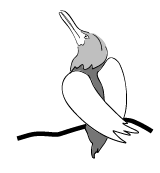
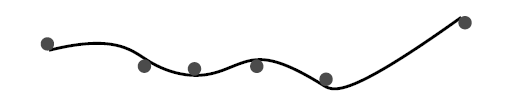
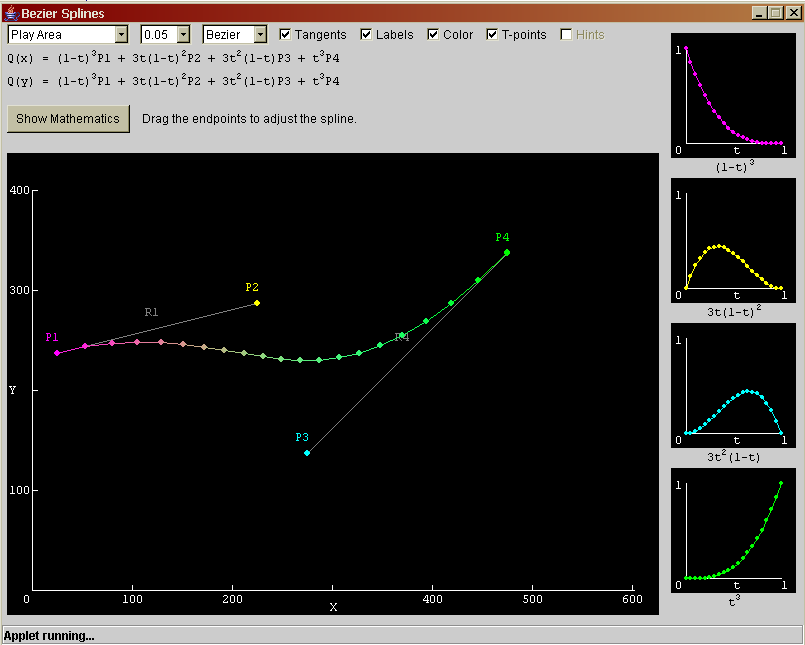
- The curves used in 2D geometric programs are a special type called
splines
- We won’t go into the mathematical definition here…
- Named after flexible pieces of wood bent around metal “ducks” to create
smooth contours for ship design
- Characteristics
- Easy to make smooth
- Can pass through pre-selected points
- Are altered via “control points” that change degree of curvature
|
|
8
|
- Go to “Exercises” option
- When done with first one, choose “Exercises” again to get new challenge
- Splines use in 2D and 3D geometric graphics for applications from
industrial design to entertainment
- Spline curves also critical in CG animation (used to control motion and
camera paths, as well as model shape)
|
|
9
|
- What is geometric graphics?
- Seeing geometry (rendering)
- Transformations
- Working with paint and draw programs: pros, cons, and combinations
|
|
10
|
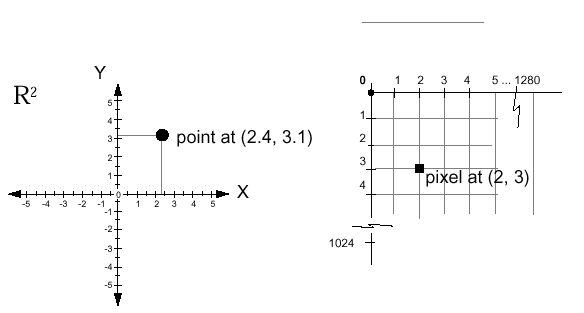
- Cartesian Coordinates
- Geometric objects are defined mathematically in a continuous “floating
point” space– decimals represented, not just integers
- Screen (pixel) space is discrete--only integers (1,2,3, etc)
represented
- x, y Cartesian grid Integer
Grid
- NB: screen coordinates often measured top to bottom, based on raster
scanline order
|
|
11
|
- Geometric descriptions are abstract, mathematical descriptions
- Rendering a geometric description makes it visible on the screen (or
printer)
- done by sampling the geometry and creating pixel arrays (raster images)
- These images are not stored as part of the model.
- Can’t usually work directly with individual pixels in geometry-based
programs
- Elements’ geometric descriptions manipulated, then rendered
|
|
12
|
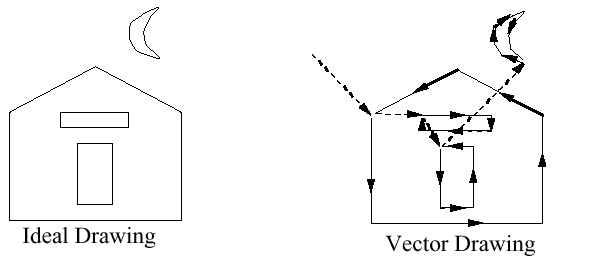
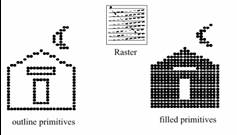
- Vector (calligraphic, stroke, random-scan)
- still used in some plotters
- NOT raster/sample based
- Raster (TV, bitmap, pixmap), used in most current displays and printers
|
|
13
|
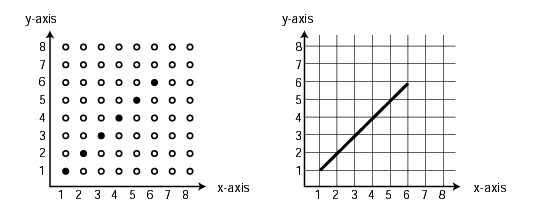
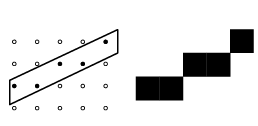
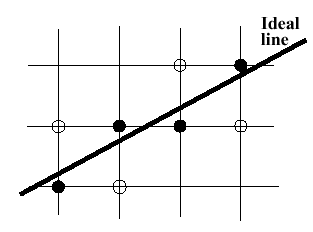
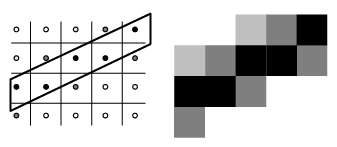
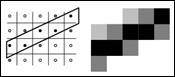
- For horizontal, vertical and diagonal lines all pixels lie on the ideal
line: special case
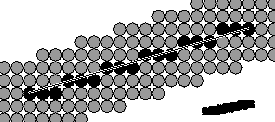
- For lines at arbitrary angle, pick pixels closest to the ideal line
- Sampling a continuous line on a discrete grid introduces sampling
errors: the “jaggies”
|
|
14
|
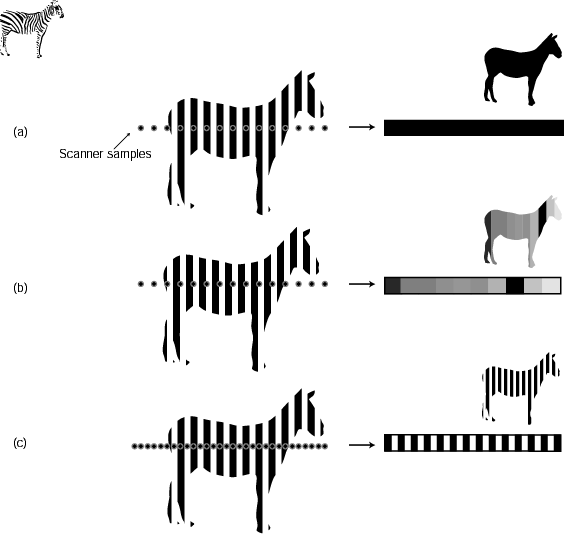
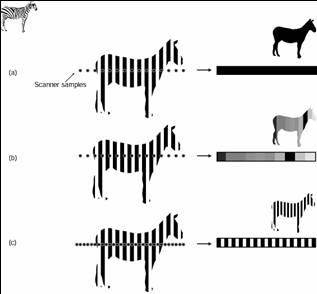
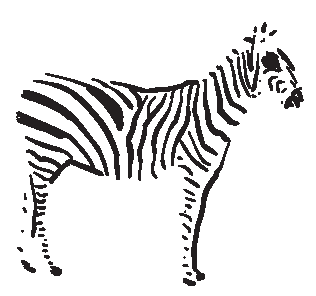
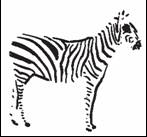
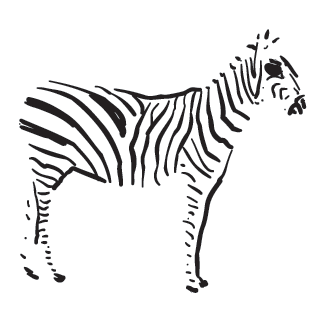
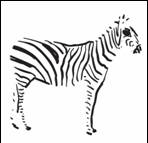
- In general, more samples per unit of area gets you better looking
results
- (a): scanning a zebra image with “rate” about the same as the stripes
- (b): sampling at 1.5 times frequency of stripes
- (c): scanning at 2x stripe frequency
|
|
15
|
- Note (a) and (b) not just low quality—actually “wrong”
- Called aliasing (like having a fake name)—it appears to be something it
is not
- Aliasing a big problem in graphics
- Comes up whenever one has to convert continuous data into discrete data
(in graphics and beyond)
|
|
16
|
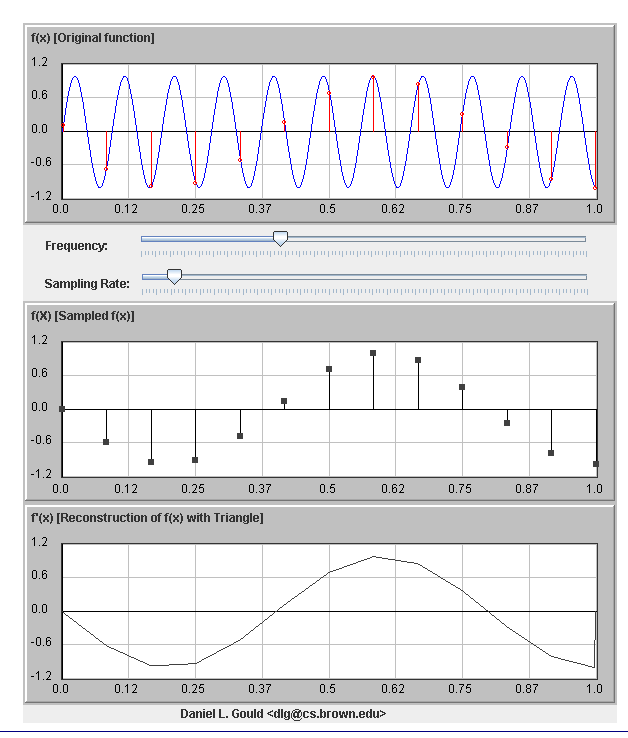
- Shows “signal” wave rather than recognizable image
- High frequency represents
- areas of abrupt change in image (high contrast)
- Text and line drawings are high frequency,
- Low frequency represents
- Areas of gradual brightness or color change in image
- Gradients are low frequency
- Sampling below Nyquist limit creates aliases—high frequency inputs that
masquerade as low frequency ones
|
|
17
|
- No matter how high you scan, still lose info…
- Can improve outcome by including some influence of neighbors in addition
to value of main sample
- I.e., give the surrounding sample colors some weight in calculating
final pixel color
- Sound familiar? Same filters used for antialiasing as blurring, scaling
|
|
18
|
- What is geometric graphics?
- Seeing geometry (rendering)
- Transformations
- Working with paint and draw programs: pros, cons, and combinations
|
|
19
|
- Vertices, paths, and fills used to define objects
- Can be modified by adjusting vertices/control points
- Modification of whole object done with 3 types of mathematical transformations:
- Translation (moving around)
- Scaling
- Rotation
|
|
20
|
- Disclaimer: all this even more important for 3D work
- Order of operations matters (as well see in demo)
- Scaling and then rotating doesn’t give same result as rotating, then
scaling…
- Illustrator demo
- Only need these three transformations (translate, scale, rotate) to
assemble any group of parts into final object (!)
- All 3D programs based on these 3 transformations
|
|
21
|
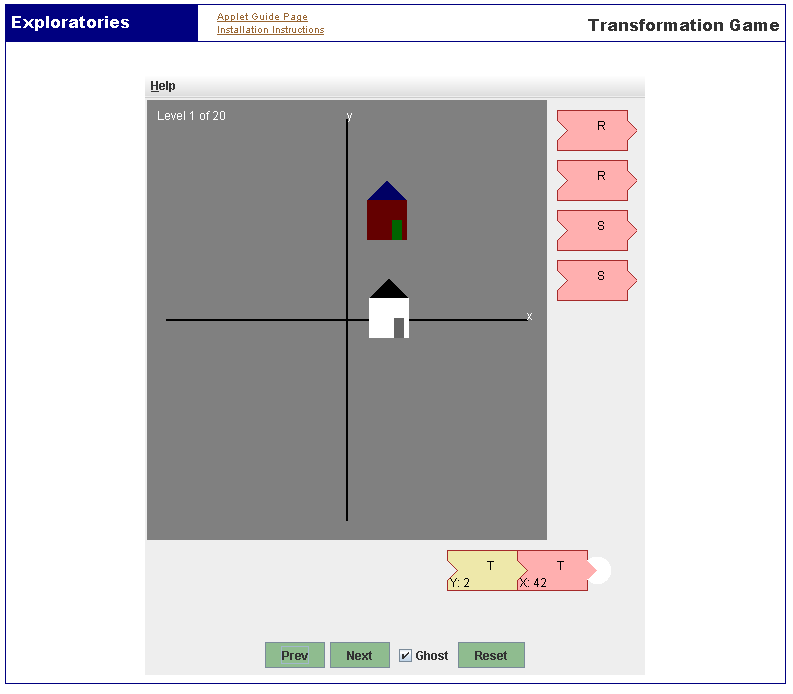
- Get feeling for programming transformations (with no programming or
math)
- T= Translation (move)
- R = Rotate
- S = Scale
- All transforms relative to origin (0,0)
- E.g., rotation is around the 0,0 point, not the middle of the object
|
|
22
|
- What is geometric graphics?
- Seeing geometry (rendering)
- Transformations
- Working with paint and draw programs: pros, cons, and combinations
|
|
23
|
- Pros
- Photographic realism
- Variations of colors within area
- Able to (somewhat) simulate
many traditional media (paints, markers, etc.)
- Supports actions like “smudging”, blurring etc.
- Cons
- Objects have no memory/definitions—can’t select them and move them
around (at least not easily, and a moved object leaves a hole in the
image)
- Large file size
- Filtering and other operations computationally intensive—can be slow
- Fixed scale (pixel dimensions of image)
|
|
24
|
- Pros
- Objects defined as such—can select, transform easily and without
quality loss
- Easy to align and compose objects
- Rendering resolution dependent on screen or printer—can render in any
scale and quality desired (great for print work)
- Cons
- Harder to achieve realism – not photographic looking
- Can’t vary colors in complex ways—just have fills with gradients and
patterns, but not changes made by hand
- Color selection tedious
|
|
25
|
- Most programs combine aspects of data types
- Adobe Photoshop
- Has text that can stay “geometric” indefinitely
- Has layers to make defining raster “objects” easier
- Has spline-based path tool for defining selection/mask areas
- Adobe Illustrator
- Can import raster images and transform them (although you can’t edit
any pixel data by hand or adjust contrast, etc.)
- Can “paint” with brush-like tool that saves stroke as a filled path
- Corel Painter: Many combo features such as “snap-to-path painting”
- 3D programs use texture mapping and “polygon painting”
- 3D graphics increasingly combining image-based (raster) and geometric
techniques
|
|
26
|
|
|
27
|
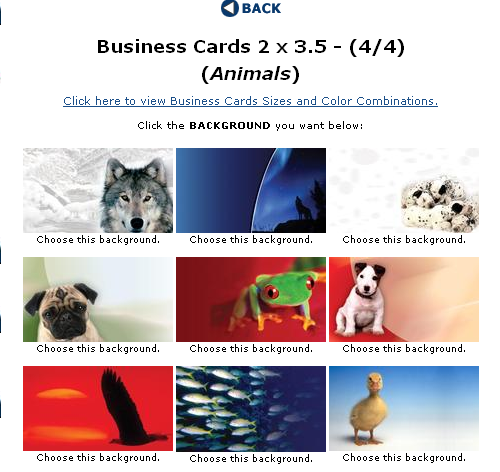
- Create two business cards, each representing you in a particular role
you play
- There is a long art tradition of the self-portrait. Usually this
involves creating an image of one's face. In this exercise, the
self-portraits will be developed as business cards.
- Each of the two cards will represent you in a particular role in your
life--e.g., student, friend, boyfriend/girlfriend, child, member of
club, sports team, role in pursuing a hobby, or more abstract if you
like, role as human being, citizen of a country, etc.
- You can be creative in how you define the roles you play in your lives.
- If applicable, where would you hand out this card? To whom?
|
|
28
|
- The cards must be standard size
(2” x 3.5”)
- Cards must be submitted in either
- .eps or Illustrator, or pdf format OR
- As a raster image (e.g., Photoshop) at 300dpi.
- Submit them to ams@cs.brown.edu via email.
- Due: Next Thursday (March 10)
- We will print them out for you on card stock
|
|
29
|
- All the aspects discussed in the Williams book
- Proximity
- Alignment
- Repetition
- Contrast
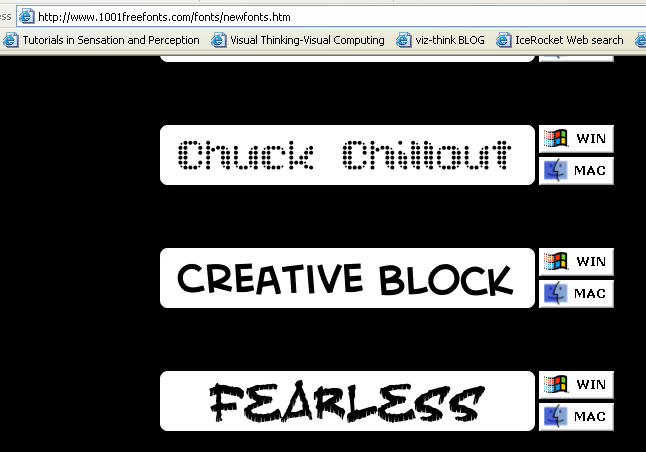
- As well as choice of type.
- Add graphics (beyond type) only if they will make your
self-representation more effective (i.e., don't just add eye candy)
|
|
30
|
- Read her “business card” section
- Also look online (sites in assignment sheet)—and at any business cards
you encounter in real life
|
|
31
|
|

 Notes
Notes